

How Chat Works in Parentr
Updated on
March 7, 2025
There are several ways to chat with class members in the app.
Chat with Your Class
You must join a class to engage in Class Chats. To chat in the class:
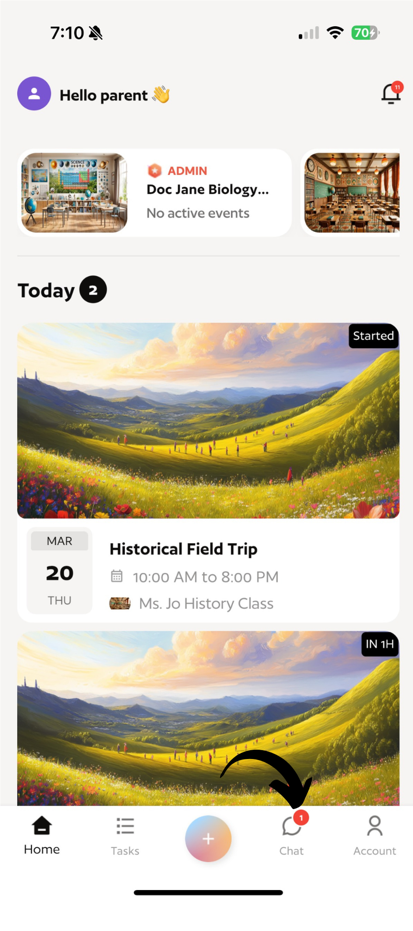
- From the Home screen, select the Chats menu.
- Select a class from the list of classes you joined.
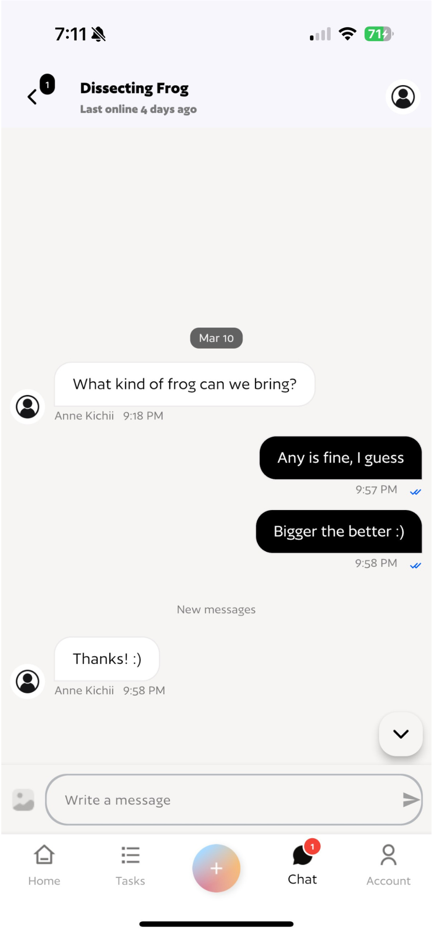
- Type and send your message.


Chat in an Event
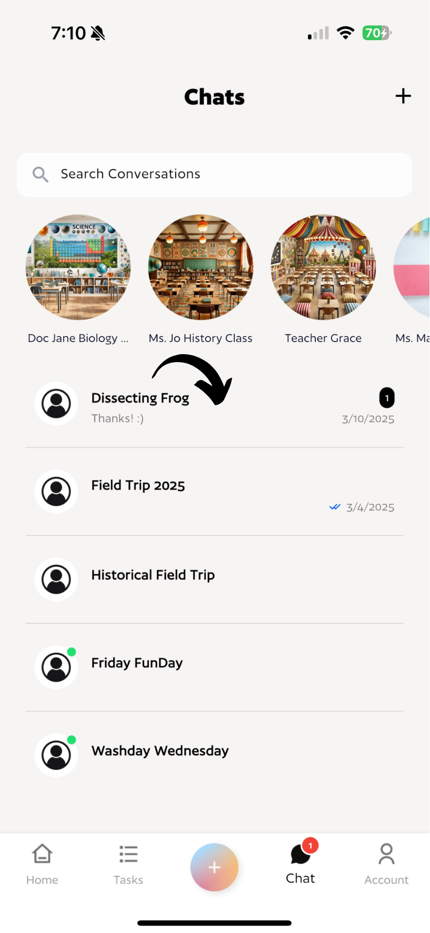
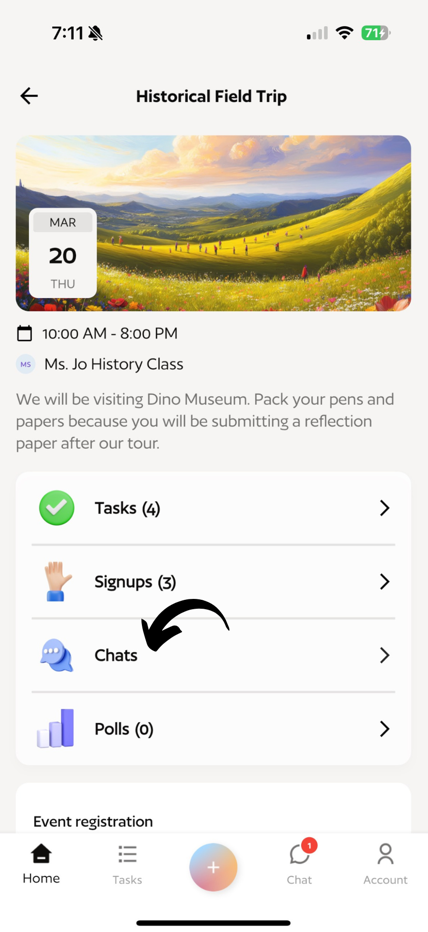
Event chats must first be enabled from the Event Details page. Once enabled, there are two ways to access Event Chat:
- From the Home Screen: Tap the Chat menu. Event Chats will be displayed with the Event Name.
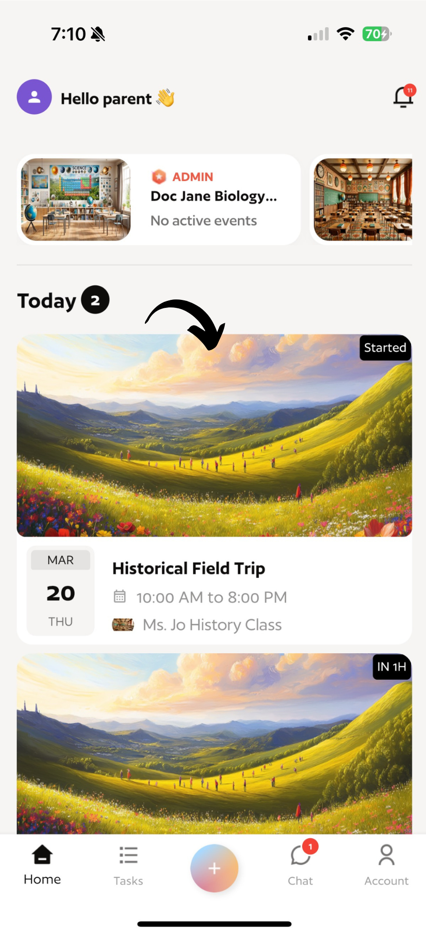
- From Event Details: Select the Event from your Home screen, then tap on Chats to open the Event Chat.
Sending Personal Messages to Other Parents
Stay connected with other parents through direct messaging in Parentr.
Search from Chat screen
- From the Home screen, tap the Chat menu.
- Tap the + button.
- Search for the parent's name or find them in Suggested.
- Tap Create Chat to start the conversation.


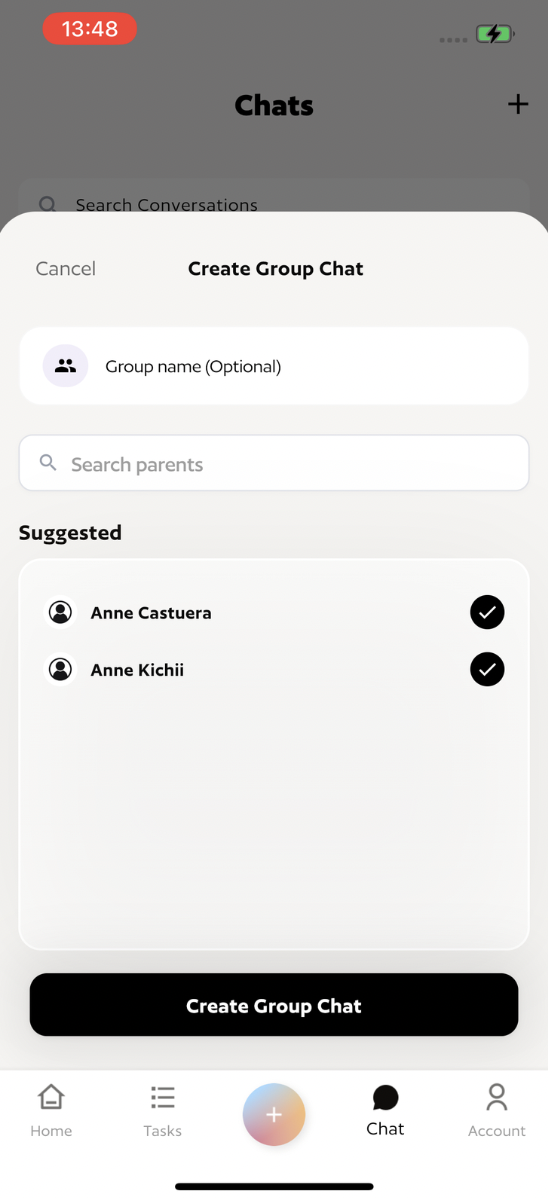
Creating Group Chats
- Tap the + button from the Chat menu.
- Select more than one parent from the Suggested list.
- Assign an optional Group Name.
- Tap Create Group Chat to begin the conversation.
Start a Chat from the Class Directory
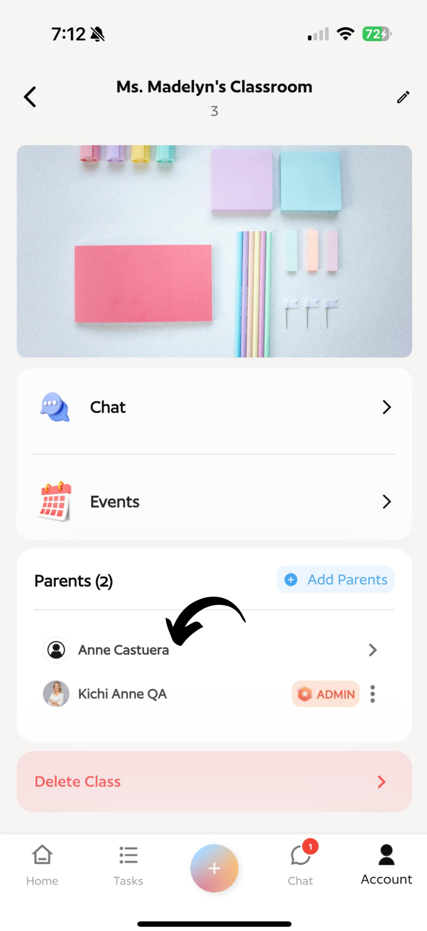
- Navigate to your Class Directory from the top section of the Home screen or go to Account → Classes, then select the specific class.
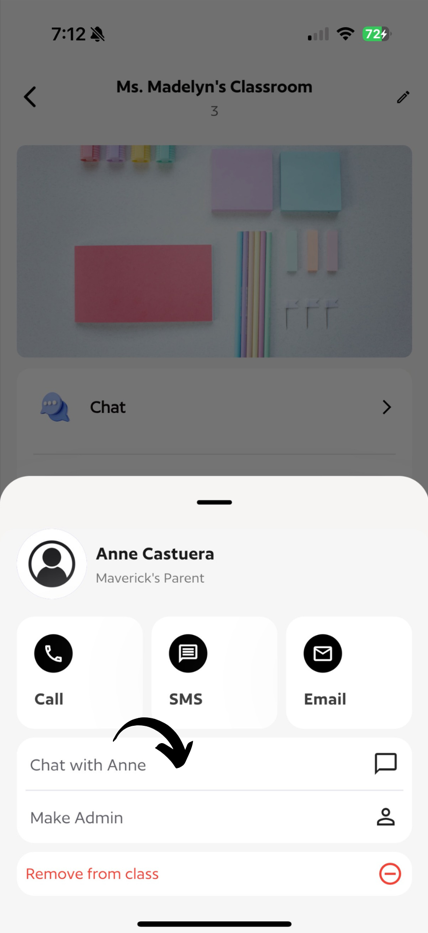
- Go to the Parent section and tap the parent’s name.
- Tap Chat with [Name] and start messaging.
You will be notified of unread chats to ensure you never miss out on important conversations.
You will be notified of unread chats to ensure you never miss out on important conversations.
